Gamepad Action Library
 GameMaker has a number of dedicated actions that can be used to detect both analog and digital controls from multiple connected game pads. These actions require you to specify a gamepad index value, which is a number (counting from 0) that represents the gamepad being selected. Note that when a gamepad is plugged in to your device (or it is removed) then an asynchronous System Event is triggered (however to deal with this you may need to use code).
The gamepad "slots" are indexed from 0 with slots 0 - 3 inclusive being only for Xinput gamepads, ie: Xbox360 controllers and compatibles. However, you can also check slots 4 - 11 inclusive for DirectInput gamepads, which means you can detect many other models of controller when connected through these slots.
Input Constants
When working with the gamepad actions, input can come from axes, buttons or hats, which GameMaker will assign to the following built-in constants (note that "hats" are generally only detected on non-standard controllers):
| Gamepad Button Constant |
| Constant |
Description |
| gp_face1 |
Top button 1 (this maps to the "A" on an Xbox controller and the cross on a PS controller) |
| gp_face2 |
Top button 2 (this maps to the "B" on an Xbox controller and the circle on a PS controller) |
| gp_face3 |
Top button 3 (this maps to the "X" on an Xbox controller and the square on a PS controller) |
| gp_face4 |
Top button 4 (this maps to the "Y" on an Xbox controller and the triangle on a PS controller) |
| gp_shoulderl |
Left shoulder button |
| gp_shoulderlb |
Left shoulder trigger |
| gp_shoulderr |
Right shoulder button |
| gp_shoulderrb |
Right shoulder trigger |
| gp_select |
The select button (on a PS controller, this triggers when you press the touchpad down) |
| gp_start |
The start button (this is the "options" button on a PS controller) |
| gp_stickl |
The left stick pressed (as a button) |
| gp_stickr |
The right stick pressed (as a button) |
| gp_padu |
D-pad up |
| gp_padd |
D-pad down |
| gp_padl |
D-pad left |
| gp_padr |
D-pad right |
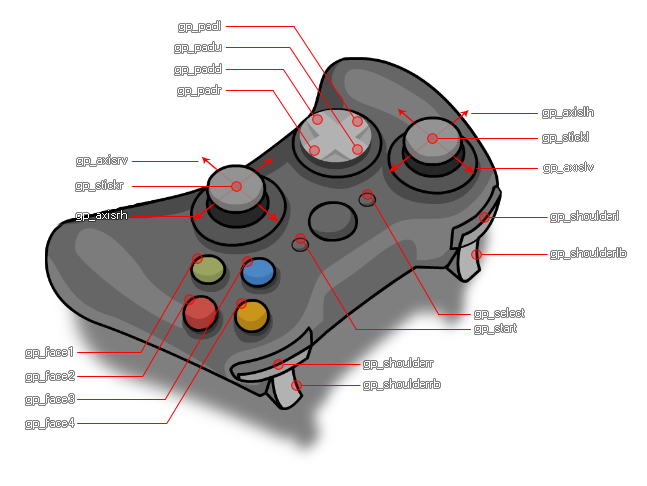
To better understand exactly what part of the controller each constant represents, you can refer to the following image of a standard Xinput gamepad:
Actions
The available gamepad actions are all listed below:
The following list shows current compatibility across the platforms (note that this will change with future updates):
- Windows is fully supported with up to a maximum of 11 connected devices permitted at once. Note that on Windows, the first 4 gamepad slots (0 - 3) are handled using the XInput dll, meaning that only XBox controllers may be 100% compatible and that for other controller types you should check the rest of the gamepad slots (4 - 11).
- macOS is supported with up to a maximum of 4 connected devices permitted at once, and these devices can ONLY be of the type Playstation3 or Xbox 360. Please note that the "Build for Mac AppStore" option in Mac Game Options needs to be OFF for pad support to work.
- Ubuntu does also support GamePad input, but you may need to install additional libraries from the Ubuntu repository. You can do this easily by opening a command line terminal and typing the following, which will install GUI support for the joystick as well as the joystick itself:
sudo apt-get install jstest-gtk
sudo apt-get install joystick.
- HTML5 games support gamepads on most major browsers, except Safari.
- Gamepad support also extends to iOS with the iCade cabinet. The left axis maps to the stick controller (although the input is digital, not analogue), the four "face" buttons map to the cabinet front buttons, and the four shoulder buttons map to those at the back of the cabinet.
- Android export supports NYKO controllers and generic Bluetooth controllers, but only when they are enabled, meaning that you will have to tick the iCade/Bluetooth option in the General section of the Android Game Options. They require API level 12 for them to work fully and it should be noted that GameMaker will register as connected any Bluetooth devices that your device is paired with, whether or not it's actually connected. Therefore this should be taken into account when assigning and checking "slots".
- On PS4, if you want to use the touch pad tracking you need to use the functions for the device_mouse_* buttons (there are no GML Visual actions for this).


