When using the file system functions or included files with GameMaker it is vitally important to know exactly how the file system works and what things are going on behind the scenes. To that end, this section is designed to explain and clarify exactly how things are stored, where they are stored and what possible limits or workarounds there may be to this system.
The first and most important thing to note about the file functions is that they are limited - in general and by default - to the sandbox. What this means is that GameMaker cannot save or load files from anywhere that is not part of the game bundle or the local storage for the device without explicit input from the user, and even then this input is limited to only Windows, macOS and Ubuntu (Linux) target platforms.
IMPORTANT It is possible to turn off the sandboxing, however, on the Desktop targets (Windows, macOS, and Ubuntu (Linux)) by checking the Disable file system sandbox option in the Game Options for the target platform. You do this at your own risk, and while this will open up file saving and loading and permit you to access files anywhere on the given system, it may still be limited by the OS permissions.
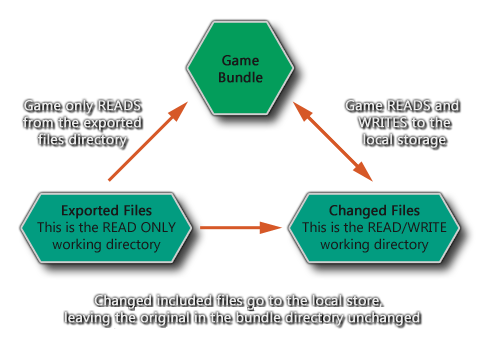
To understand the sandbox first of all you need to understand that there are two distinct areas for files:
The following diagram may help you to visualise this better:
When your game is sandboxed, the two target areas - the bundle directory and the local storage area - are available on each target platform, but on each one they will work slightly differently. However GameMaker has abstracted out the main essence of what can and can't be done, making it easier to re-target games to multiple environments.
To start with, you should understand what is meant when we talk of the working_directory. This is a synonym for the two possible save locations (as illustrated by the diagram above) and when you use that directory it will do one of two things depending on whether you are reading or writing, and whether the file you are reading from has been changed or not:
NOTE In general GameMaker will handle all this for you and you rarely need to use the working_directory built-in variable.
Using these two simple rules we can now see how the following functions work (these are examples to help you to visualise the process for the different functions available):
On the Windows, macOS and Ubuntu (Linux) platforms there are two ways to save and load files from outside of the sandbox and that is either using the functions get_open_filename() and get_save_filename() (both of these functions will require that the user select an area for loading and saving and the return string can then be used in the rest of the file functions to bypass the sandbox - see the function descriptions in the language section of the manual for more details). The other way is to disable the sandbox altogether from the Game Options for the target platform (only available for Desktop targets, as discussed further up this page).
On HTML5 it is also possible to load files from outside the sandbox from a server, however this should only be done using the function buffer_load_async() as loading synchronously has been deprecated on most browsers and will eventually be obsoleted. This means that files being loaded in this way should be saved as binary files - for example, you can save an *.ini as a string (see ini_close() for details) and then write that into a buffer which can then be saved and loaded using the async functions. Note that if you are loading images using sprite_add() then these are already dealt with asynchronously.
You should also know that each target platform has its own save area where files and directories can be written to and read from. Below is a list of those areas for each target when sandboxed:
It is worth noting that the HTML5 target module has a limit on local storage (which can be between 1MB and 5MB depending on the browser) meaning that you will not be permitted to save large sprites, screenshots, etc.