The Help Menu
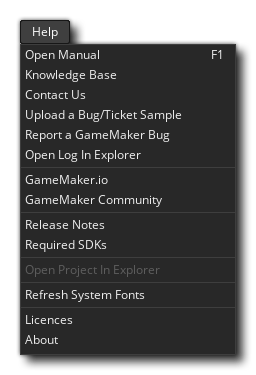
This menu is related to getting help when using GameMaker. It contains the following menu items:
- Open Manual - This opens the help manual. Note that clicking the help button
 in the menu bar will also open the document, as will pressing
  . See Help Preferences for configuration of the manual.
- Knowledge Base - This will take you to the GameMaker Knowledge Base where you can find articles on platform setup, known issues, using GameMaker and a number of other things.
- Contact Us - This takes you to the Contact Us page.
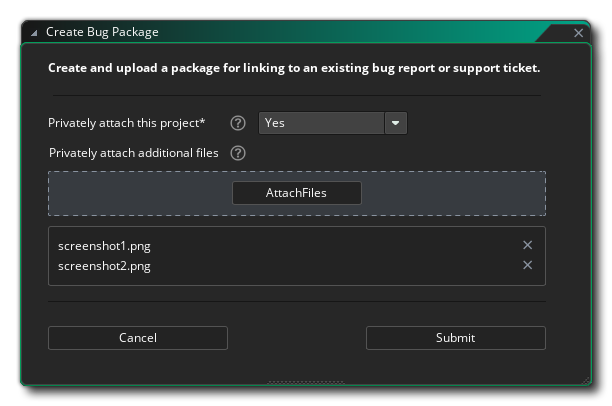
- Upload a Bug/Ticket Sample - This creates a sample package to which you can privately attach the current project as well as additional files that could be useful (e.g. screenshots, videos or log files). If you forgot to add a project to a bug report or a customer service ticket and you're asked to add one later, use this option to create that package.
Select whether you want to Privately attach this project and optionally Privately attach additional files, then press the Submit button. When the upload is successful a message is shown and you can click the button to copy the download link to the clipboard. For more info on each option, hover over the question mark ? next to it.
- Report A GameMaker Bug - You can use this option to report bugs directly from within the IDE, in case you find any bugs or have any issues while using GameMaker. For detailed information on this window, see: Report A Bug Window
- Open Log In Explorer - This opens the directory on your system where you can find the ui.log file, which is usually needed for submitting IDE-related bug reports.
- GameMaker.io - This opens the GameMaker website.
- GameMaker Community - This opens the GameMaker Community forums in your browser. Note that this is a community-run forum, so if you have a bug report or require technical assistance you should go to the Official Support Site first (see above).
- Release Notes - This opens the Release Notes for GameMaker in your browser. Should you need to roll back an update, you can get previous version installers by clicking the version number link on this page.
- Required SDKs - Due to the cross-platform nature of GameMaker a number of third-party SDKs are required. Clicking this will take you to a support article that details what you need on a per-platform basis.
- Open Project In Explorer - This opens the save location of the currently loaded project in the OS file explorer.
- Refresh System Fonts - This refreshes the system fonts that GameMaker is able to see, and is useful for detecting new fonts that you installed while the IDE was open.
- Licences - This opens a window containing licences for all the third-party libraries used in GameMaker.
- About - This opens the "About GameMaker" window where you can get version information on the product (essential for reporting any bugs or issues) and see the credits.