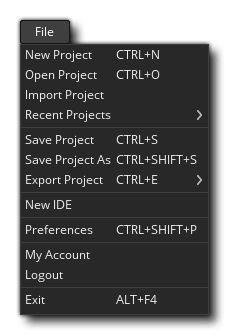
The file menu is where you can choose to change, save or import projects as well as set the GameMaker IDE preferences. The available options are:
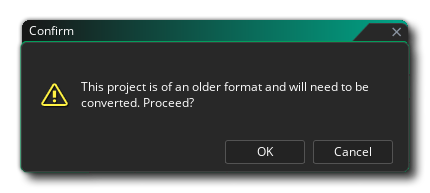 If you choose to proceed then a file explorer will be opened and you can give the project an updated name and location to save it, so the original project will not be over-written. Once the project has been converted to the new 2.3.0+ format, it will open in the IDE and you will get a message saying that the conversion has succeeded. You should proceed to check the compatibility report that has been generated by the conversion process and see if there is anything that you need to fix before trying to run or compile the project. Note that if you get repeated errors while trying to open a project made with a version anterior to 2.3.0, then you should contact YoYo Games (using the "Report a bug" option from the Help Menu), supplying the original *.yyp file that you are trying to convert.
NOTE: To import a previous GameMaker project into GameMaker it must have been created using the 1.4 version, and even then it may not work directly on import. A great many things are different between GameMaker and GameMaker: Studio 1.4, and so your older projects may need some tweaking for them to work. Please see the article Porting A GM:S 1.4 Game To GameMaker on the GameMaker Knowledge Base and the section of the manual that covers Obsolete Functions and Compatibility Scripts.
IMPORTANT! Importing a *.yyz project that contains font resources may require you to "regenerate" the fonts by removing/re-adding them, or by changing the font in the font editor and then setting it back again. This is because the existing font information is retained by the *.yyz when it is exported, and, on import later or on another machine, the project may not have the required fonts installed already (or may have a different font of the same name). This should only be done if you are seeing issues with how the font renders after import.
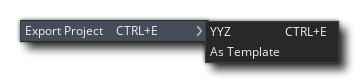
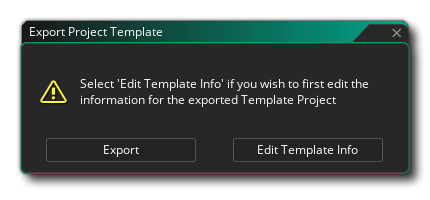 You should first click on "Edit Template Info" to ensure that your template information is correct, and then select "Export" when you open this prompt a second time to save it as a template. You will then see it under the Template menu on the Start Screen.
IMPORTANT! If you have been using a Free licence for GameMaker and then buy one of the other licences, you may need to log out of the IDE and then restart GameMaker and log back in again to make sure that the new licence is applied correctly (although this should happen automatically).