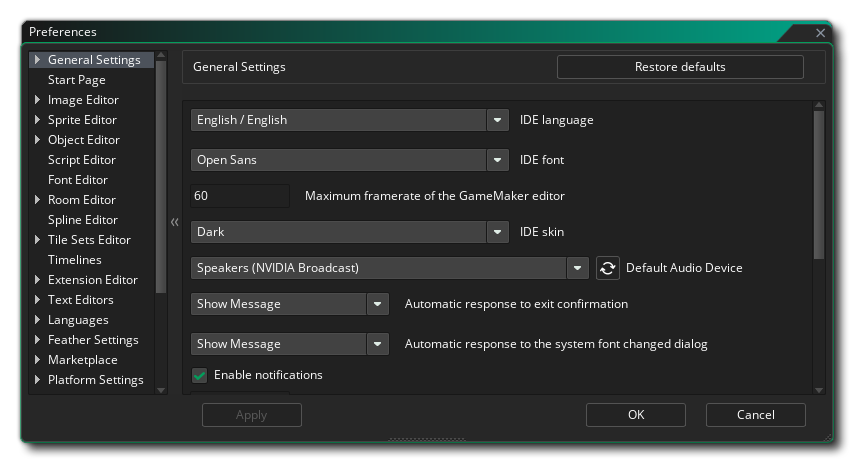
 The Preferences Window is an essential part of GameMaker, as it is where you can set up and customise your experience using the IDE as well as set up any specific platform SDK's, etc.
The Preferences Window is an essential part of GameMaker, as it is where you can set up and customise your experience using the IDE as well as set up any specific platform SDK's, etc.
In this section we cover the IDE specific areas of the preferences window - for the individual target platforms please see the section on Platform Preferences. Note that after changing any preferences from this window you need to click the Apply button for them to take effect.
If, after changing the options here to customise GameMaker to your own tastes, you wish to back up the preferences that you have set you need to go to this folder on Windows:
%AppData%\GameMakerStudio2\<your_account_name>\
Or this folder on Mac:
~/Library/Application Support/GameMakerStudio2/<your_account_name>/
NOTE In previous versions of GameMaker the .config folder was used instead of the Library/Application Support folder. GameMaker will automatically move the contents of the old folder to the new one upon login if the new folder doesn't exist yet.
And then copy the following two files to a safe place:
However, if you wish to reset the preferences you have changed, then you need to click the Restore Defaults button at the top of the window. Note that this will only restore the defaults for the section currently being edited.
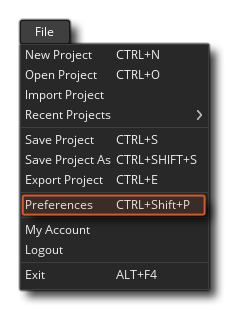
You can open the GameMaker Preferences from the File menu at the top left of the IDE:
 Once the Preferences window is open you will have the following different options (this list omits all platform-specific preferences, for those, please see Platform Preferences):