General Preferences
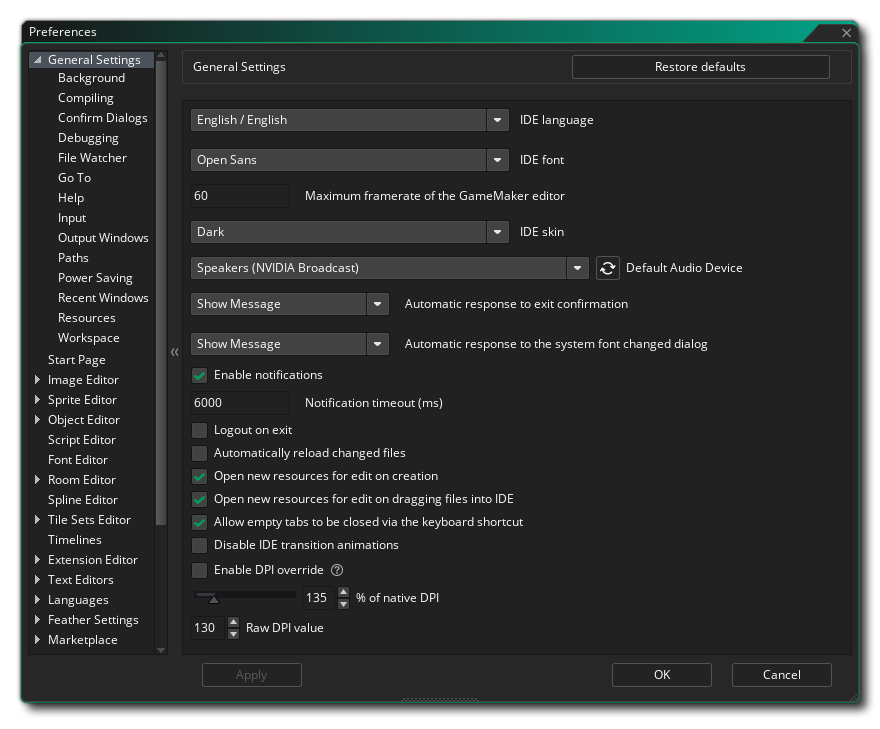 The General Preferences are used to define the general behaviour of the GameMaker IDE. The most general ones are listed on the main page while many others are split into multiple sub-categories, explained further down this page.
- IDE Language: This option permits you to select the language for the IDE from the list of options supplied. Default is English.
- IDE Font: This option permits you to change the font used throughout the IDE. Default is Open Sans.
- Maximum Framerate of GameMaker Editor: This option permits you to set the maximum framerate that the GameMaker IDE will update at, permitting you to set the framerate to match the update speed of your monitor. Default value is 60.
- IDE Skin: Here you can select from the different skins that the IDE can use. By default GameMaker comes with two skins, one light and one dark, and the initial setup uses the dark skin.
- Default Audio Device: Here you can choose the default audio device for the GameMaker IDE to use. You can refresh the list by clicking the Refresh Button
 .
.
- Automatic Response to Exit Confirmation: This option permits you to set whether a confirmation message should be shown when you exit GameMaker. By default this is set to "show message", but can be set to skip the message as if you'd clicked OK.
- Automatic Response to The System Font Changed Dialog: This option permits you to set whether a confirmation message should be shown when a system font has been added, removed or edited. By default this is set to "show message", but can be set to skip the message as if you'd clicked OK.
- Enable notifications: Checking this will enable the IDE to show notifications about new runtimes, etc... This is on by default.
- Notification timeout (ms): This sets the length of time (in milliseconds) that a notification is shown for. Default is 6000.
- Logout on exit: If this option is checked then the IDE will automatically log out the user session when GameMaker is closed. This is primarily aimed at Education users, as - when checked - this means that whenever the program shuts down the user would be logged out and so free up the session seat for other users to use. This is off by default.
- Show welcome screen on startup: This is on by default and simply tells GameMaker to show a brief splash screen when you start the program. Un-checking this will prevent the splash screen from showing.
- Allow empty tabs to close via shortcut: You can close any open Tabs using the keyboard shortcut
 /
/  + W, but if you disable this option that shortcut will no longer work. This is enabled by default.
- Open new resources for edit on dragging files into IDE: Certain resources (like sprites or sounds) can be dragged onto the main Workspace in the GameMaker IDE and will be detected and added as a new resource in the Asset Browser. By default the corresponding resource editor will also be opened for editing when this happens, but un-checking this option will prevent the editors from being opened and you will be required to open them manually.
- Open new resources for edit on creation: If this is checked, every time you create a new resource in the Asset Browser, the corresponding resource editor will be opened automatically. This is checked by default and un-checking it will mean that you have to manually open all newly created resources.
- Automatically reload changed files: If this is checked then the IDE will automatically scan and check files to see if any of them have been changed outside of GameMaker and reload them if they have.
- Disable IDE transition animations: The GameMaker IDE has a number of animated transitions for things like opening windows etc... however they are not to everyone's taste and you may experience a performance boost if they are disabled on older or under-powered machines if they are disabled. You can disable them here, and they are on by default.
- Opt-in To Feedback Surveys: When this option is checked, you are telling GameMaker that you wish to participate in feedback surveys, meaning that occasionally while working a message will be shown about the area you are working on and request a rating and feedback. This option is on by default.
- Enable DPI Override: This option lets you override the default DPI setting with your own. You must first enable the option and then set either the Raw DPi Override value (the default value is 96) or set the Percentage of the native DPi (default value 100%), and once changed you will be prompted to restart the IDE, which may require you to save any work being done on the currently open project. Note that the DPi has a minimum percentage of 50% and a maximum of 500%, and if you you mouse over the information icon you can see the recommended maximum setting for the display being used:
 Note that if you go above the recommended DPi setting for the monitor, you will be shown a notification that permits you to reset the DPi.
The options above are the main options available from the General preferences, but there are a number of extra options available to you in the sub-categories listed below: