Path Preferences
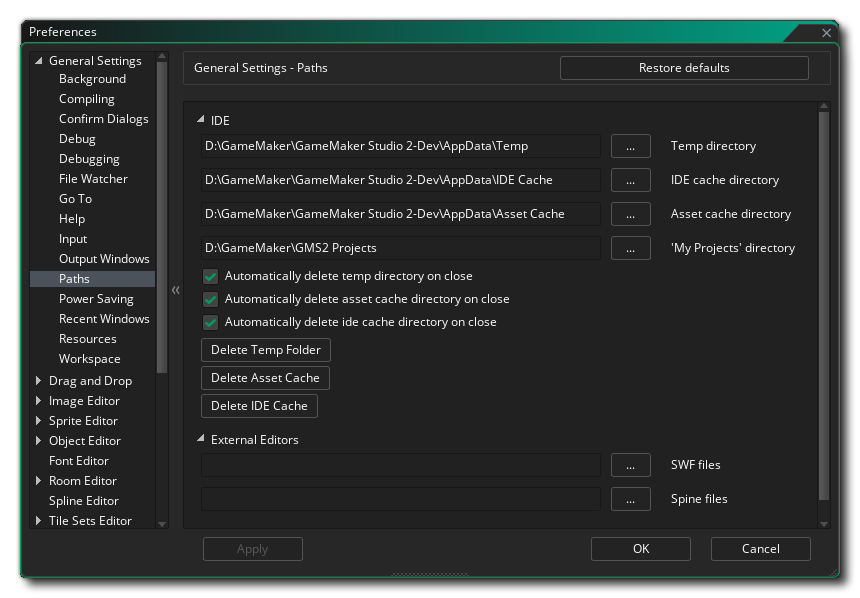
The Path preferences control the different file paths required by elements in the GameMaker IDE as well as for any external editors that you require.
IDE
The following are the options under the IDE section:
- Temp directory: The location for saving all the temporary folders. By default on Windows this is:
\Users\<Username>\AppData\Local\Temp\GameMakerStudio2
And on macOS it's:
/var/folders/<Path_Hash>/GameMakerStudio2
- IDE cache directory: The location for saving the IDE cache. By default on Windows this is:
\Users\<Username>\AppData\Roaming\GameMakerStudio2\Cache
And on macOS it's:
/Users/<Username>/Library/Application SupportGameMakerStudio2/Cache
- Asset cache directory: The location for saving the asset cache for each project. By default on Windows this is:
\Users\<Username>\AppData\Roaming\GameMakerStudio2\Cache
And on macOS it's:
/Users/<Username>/Library/Application SupportGameMakerStudio2/Cache
- "My Projects" Location: The location where GameMaker will initially create new projects. By default on Windows this is:
\Users\<Username>\Documents\GameMakerStudio2
And on macOS it's:
/Users/<Username>/GameMakerStudio2
- Automatically delete temp directory on close: Checking this will force GameMaker to automatically delete the Temp folder that it creates per project for compiling, etc. This setting is on by default, and un-checking it will switch it off (meaning that you'll have to manually remove any temp files later).
- Automatically delete temp directory on build: Checking this forces GameMaker to automatically delete the Temp folder every time the project is built. This setting is off by default.
- Automatically delete asset cache on close: If this is checked then the asset compiler cache folder will be removed when you quit GameMaker. This is off by default, and enabling it will mean that every time you load and run any project the cache will need to be rebuilt (which can take time depending on the size of the game).
- Automatically delete IDE cache on close: If this is checked then the IDE compiler cache folder will be removed when you quit GameMaker. This is off by default, and enabling it will mean that every time you start GameMaker the cache will need to be rebuilt.
- Delete Temp Folder: Clicking this button will delete the temp folder for the project.
- Delete Asset Cache: Clicking this button will delete the compiler asset cache for the project.
- Delete IDE Cache: Clicking this button will delete the IDE cache.
External Editors
The following are the options under the External Editors section:
- Sound files: The path to the external editor to use for Sounds. If empty (the default), the OS'es file associations are used.
- SWF files: The path to the external editor to use for Vector Sprites (SWF). If empty (the default), GameMaker warns you that no path is set and opens the Path Preferences. If set, clicking the Edit Image button in the Sprite Editor or the Edit Image button in the Object Editor will open the sprite in the given program.
- Spine files: The path to the external editor to use for Skeletal Animation Sprites (Spine). If empty (the default), GameMaker warns you that no path is set and opens the Path Preferences. If set, clicking the Edit Image button in the Sprite Editor or the Edit Image button in the Object Editor will open the sprite in the given program.
- Bitmap files: The path to the external editor to use for bitmap Sprites. If empty (the default), the sprite is opened in The Image Editor. If set, clicking the Edit Image button in the Sprite Editor or the Edit Image button in the Object Editor will open the sprite in the given program.
- Automatic response to external bitmap editor warning: When you use both The Image Editor and an external editor for editing the same bitmap sprite, the Image Editor will overwrite the changes. This option lets GameMaker show a warning message when you try to externally edit a bitmap sprite: Show Message shows a warning (the default), OK shows none.
- Automatic response to external spine re-import warning: Any changes done to a sprite in the Spine external editor will need to be re-imported as a new sprite. GameMaker will show a warning message for this if Show Message is selected (the default), or no message if you select OK.
- Default option for opening included files: This option sets the default behaviour when double-clicking
 a file in the Included Files.
- Properties: This opens the included file in The Inspector.
- External Editor: This opens the file in an external editor, using the file associations of the OS.